How to Run Kucing APK on PC (Windows Guide)
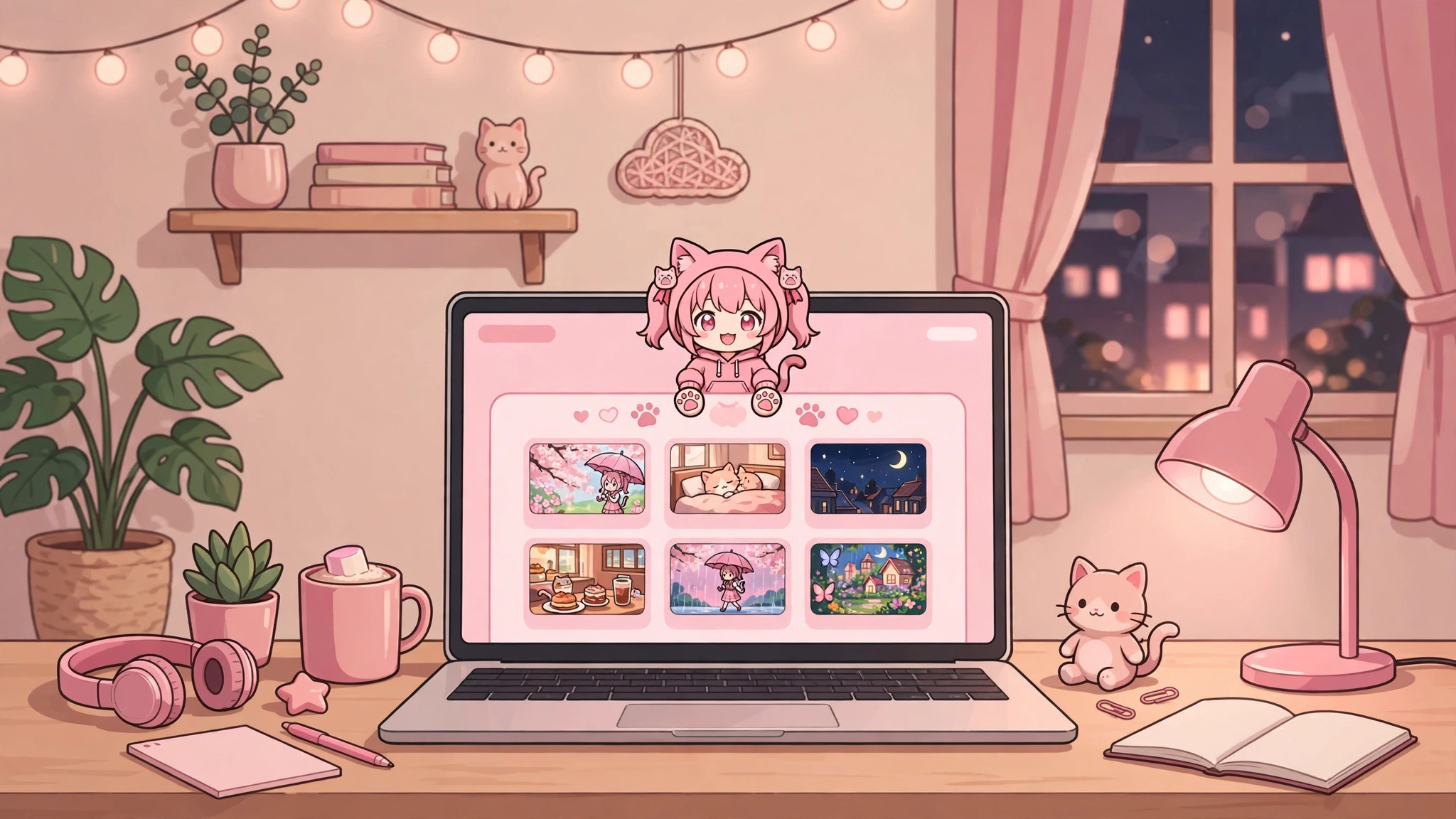
Love the pink anime-themed interface of Kucing APK but wish you could watch on a bigger screen? There is one thing to know first: there is no official PC version of Kucing APK. It is an Android-only app, and it is not available on Google Play or as a Windows program.
The good news is that you can still run it on your computer using an Android emulator — a program that creates a virtual Android phone inside Windows. Emulators are completely legal, free to use, and a standard way to run Android apps on a desktop. This guide walks you through the whole process.
Quick disclaimer: Kucing APK (Pink) is a third-party, unofficial app — not an official release and not listed on Google Play. Download it at your own discretion, and always scan APK files with an antivirus before installing. You can Download Kucing APK (Pink) v2.5.6.4 from the official site when you’re ready.
What You’ll Need
- A Windows 10 or Windows 11 PC (a reasonably modern machine works fine — see the specs section below)
- An internet connection for the initial download
- The Kucing APK file (latest version: v2.5.6.4, about 27MB)
Step 1: Pick an Emulator
There are several good Android emulators. Here are three popular, free options, factually compared:
| Emulator | Best for | Notes |
|---|---|---|
| BlueStacks | Beginners | The most well-known emulator; simple setup, good performance, built-in APK install button |
| LDPlayer | Smooth performance | Lightweight, designed with streaming and gaming in mind, easy APK drag-and-drop |
| NoxPlayer | Older PCs | Runs acceptably on modest hardware; straightforward APK installer in the sidebar |
Whichever you choose, download it only from the emulator’s official website. Never grab an emulator installer from a random download portal — repackaged installers can contain malware.
Step 2: Install the Emulator (Detailed Walkthrough with BlueStacks)
We’ll use BlueStacks as the example since it’s the most beginner-friendly. The steps are nearly identical for LDPlayer and NoxPlayer.
- Go to the official BlueStacks website and download the Windows installer.
- Run the installer and follow the on-screen prompts. The default options are fine for most users.
- Wait for the first-time engine setup to finish — this can take a few minutes on the first run, since the emulator is building your virtual Android device.
- When the BlueStacks home screen appears, you’re ready. You don’t need to sign in with a Google account to install Kucing APK, because you’ll install it directly from the APK file.
Tip: During installation, BlueStacks may ask about enabling virtualization (VT). Say yes — it’s a free performance boost. If you hit any issues, see the performance tips further down.
Step 3: Install Kucing APK Inside the Emulator
You have two easy ways to do this:
Method A — Drag and drop (easiest)
- Open the emulator so its home screen is visible.
- Find the Kucing APK file on your computer (v2.5.6.4).
- Drag the file and drop it onto the emulator window.
- The emulator will install it automatically. When it’s done, the pink Kucing APK icon appears on the home screen.
Method B — The “Install APK” button
- Look for an “Install APK” button — in BlueStacks it’s in the right-hand toolbar; in LDPlayer and NoxPlayer it’s in the sidebar.
- Click it, browse to your Kucing APK file, and select it.
- Wait for the installation to complete, then launch the app from the home screen.
Once installed, open Kucing APK and use it exactly as you would on a phone: browse anime, tap an episode, and watch with Indonesian subtitles on your big screen.
Minimum PC Specs (Loose Guidelines)
Emulators are more demanding than a phone, but a typical modern PC handles them fine:
- OS: Windows 10 or 11 (64-bit)
- CPU: A reasonably modern dual-core processor or better
- RAM: 8GB recommended (4GB is the practical minimum, but things will feel sluggish)
- Storage: A few GB of free disk space for the emulator and the virtual device
- Graphics: Anything from the last decade is fine for video streaming
If your PC is on the weaker side, LDPlayer or NoxPlayer in lightweight mode are usually the better pick.
Performance Tips: Make It Run Smoothly
If playback stutters or the emulator feels slow, work through these:
- Enable virtualization (VT) in BIOS. This is the single biggest performance factor. Restart your PC, enter BIOS/UEFI settings, and turn on Intel VT-x or AMD-V. (Search “[your motherboard/laptop model] enable virtualization” if you’re unsure how.)
- Allocate more RAM and CPU. In the emulator’s settings, give the virtual device 4GB RAM and 4 CPU cores if your PC has the headroom. Don’t assign more than half of your PC’s total RAM.
- Switch the graphics mode. If video lags, try toggling between OpenGL and DirectX in the emulator’s engine settings — one of them is usually smoother on a given PC.
- Close heavy background programs. Chrome tabs, Discord, and games compete for the same CPU and RAM the emulator needs.
- Keep the emulator updated. Emulator developers regularly fix bugs and improve performance.
Troubleshooting Common Issues
- “APK failed to install” — Re-download the APK file; it may be corrupted. Then install it again via the “Install APK” button.
- Black screen when opening the app — Restart the emulator, or switch the graphics renderer in settings.
- No sound — Check Windows volume mixer; the emulator sometimes appears as a separate audio source.
- App crashes on launch — Clear the app’s data inside the emulator (Settings → Apps → Kucing APK → Clear data), then reopen it.
Is it safe to run Kucing APK on an emulator?
Emulators themselves are safe when downloaded from official sources. The app is still a third-party, unofficial APK, so the same caution applies as on a phone: download only from the official Kucing APK site, scan the file with antivirus software, and keep in mind it is not an official or Play Store app.
Will my watch history or favorites sync between my phone and PC?
Kucing APK doesn’t have cloud accounts, so there’s no automatic sync. Your favorites and watch progress on the emulator stay on the emulator, and what’s on your phone stays on your phone.
Does running it on PC cost anything?
No. BlueStacks, LDPlayer, and NoxPlayer all have free versions, and Kucing APK itself is free to download and use. Just be aware that some emulators show ads or optional premium upsells — you can ignore those.
Can I watch in fullscreen?
Yes. Emulators have a fullscreen button (usually in the toolbar), so you can watch anime on your whole monitor just like any desktop video player.
Final Thoughts
There’s no native Kucing APK for Windows, but an Android emulator gets you 95% of the way there: same pink interface, same Indonesian subtitles, same library — on a bigger screen with proper speakers. Install an emulator from its official site, drop in the APK, turn on virtualization, and you’re watching anime on your PC in under fifteen minutes.